 Every computer user has some data that needs to be secured against unauthorized use, for example your saved password list, accounting data or some other secret stuff, I have shared free folder locking utility MyLockBox earlier on this blog which can be handy in such situations, but if you are looking for something more professional yet free CryptoExpert 2009 LITE is the answer, CryptoExpert allows you to create password protected encrypted virtual disks which works as usual disks having their own drive letters, the best part is that the data stored on a CryptoExpert disk is actually stored in a pre-configured container file making it possible to move or copy the container to easily backup your sensitive data, when used with automated online data backup and synchronization services this can be a great solution to secure and backup the data automatically.
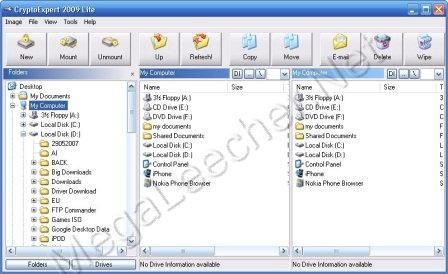
CryptoExpert volumes works similar to any other disk-partition on your computer the only difference being that it requires password authentication before the disk becomes accessible, the utility works on Windows Vista/XP/2000 (both 32 Bit and 64 Bit) and allows users to choose from various encryption algorithms to secure the data.
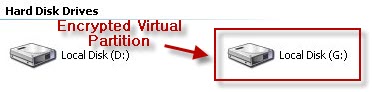
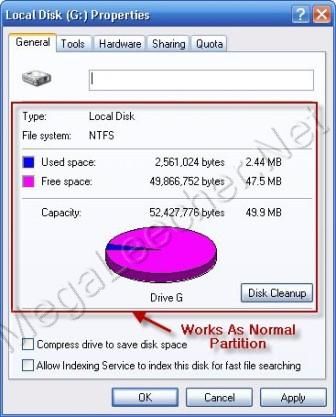
To start using the virtual disk, you will need to create the container and mount it using CryptoExpert as demonstrated below.
Steps for creating a password protected Virtual disk using CryptoExpert 2009 :
- Click the New button located at leftside in CryptoExpert 2009 Lite.
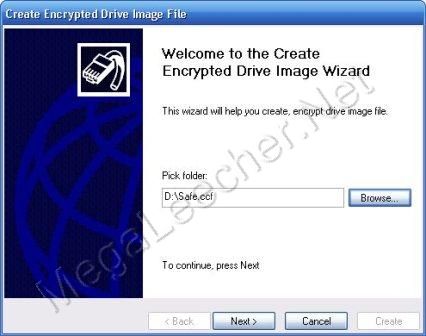
- Follow the on-screen wizard instructions to complete the container creation process as shown below.
- Now right-click the container file and select Mount.
- You will now be prompted to supply the password used in the container creation process above to unlock the virtual drive.
- You can unmount the container when no access is required.
- The container file can be easily copied to other locations for fast and easy backup.
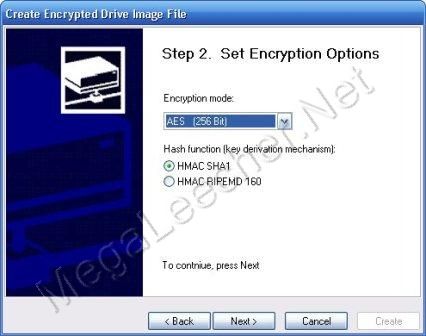
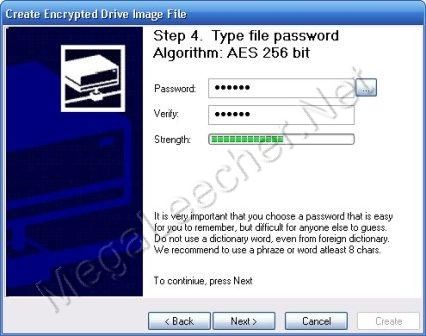

The whole encryption and decryption process is completely transparent to the user and works on-the-fly without any performance issues, you simply use CryptoExpert virtual disk-drive as a normal Windows partition and every thing is taken care in background.
Comments
Maybe i choose TrueCrypt :)
Maybe i choose TrueCrypt :)
how to create the container file
i started using this software .... but i;,m unable to create the .ccl file. ..
u said i need to create the container file .. what does that mean ...
i can;t able to create it ....
please any tell me ... how to use it from the initial step clearly .....
gvg
hfghhj
Easy free encryption
I'm using Rohos Mini Drive. They have got a nice tutorial - http://www.megaleecher.net/How_To_Password_Protect_USB_Drive_With_Encryption
Add new comment