Submitted by Deepesh Agarwal on Thu, 11/06/2008 - 07:54
We have shared tips on how to launch Internet Explorer 8 and Firefox in private browsing mode by default, today I will be sharing a simple trick to start Google Chrome in private browsing Incognito mode by default.
Latest beta builds of Google Chrome now supports a new incognito mode command-line switch, to create a shortcut based on this simply follow the steps as follows:
- Update Google Chrome browser to latest BETA build, see instructions here.
- Right-click the Google Chrome shortcut and copy the full-string from Target textbox.
- Right-click on Desktop, Click New -> Shortcut
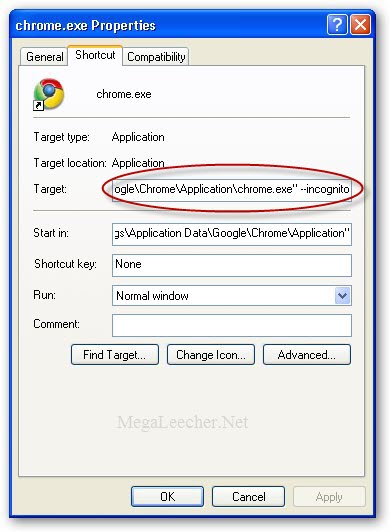
- Paste the copied link from first-step, appending --incognito as shown below and click Next.
- Type in a name of your choice for the shortcut, eg. "Incognito" and click Finish.
- Using this shortcut will launch Google Chrome Incognito mode for private web-browsing.
Comments
it did not work
it did not work
I followed the steps and it gave me an error about the path I gave it
reply
you press
ctrl + shift + n and it should work
Will it work even if the
Will it work even if the steps in this tutorial have not been performed?
didnt work
like him
it does work
I had the same problem, you need to put the --incognito outside the "
it worked
Worked for me
didnt work
even with --incognito to the right of the ", the google default chrome screen appeared instead of the secure one. maybe you have to somehow tell chrome's settings on which screen is the default ???
Works for me
The screenshot above shows that you need to put a space between the last doublequote and the first dash. I'm guessing maybe it doesn't work if you don't include that space.
WHAT!!!
I think he missed a step in this process thats why everyone cant get it to work
WORKED
it worked for me
btw i use vista
Thanks!
This is trivial and works just fine.
great! Thanks!
great! Thanks!
thanks a lot!
nice tweak
Worked Just Fine For Me
I didn't follow the instructions exactly, though. All I did was right click an existing shortcut in the Quick Launch bar + add the " --incognito" part at the end of the quotes (space included).
Simple. Easy. Useful. Great. Thanks!
actually it is just
actually it is just "location" -incognito and not "location" --incognito . This will help out.
small correction
actually it is "location" -incognito and not "location" --incognito
put a space after the 2nd " and its fine
put a space after the 2nd " and its fine
i managed to get this to
i managed to get this to work for vista but cant get it to work with windows 7???
i got it
try only one of the dash marks
I worked for me
It wasnt working for me for a while but that was until i put a space in between the last part of the path and the first - before --incognito.
you have to copy the
you have to copy the original chrome shortcut and copy a new shortcut...crucial step. Then change the properties in this shortcut by right clicking - propeties - go to the end of the target, add one space then --incognito. Apply, every time you want to go incognito open this shortcut
you have to put 2 dashes
you have to put 2 dashes before incognito. --incognito not -incognito
It works the way the author instructed, not the way that makes sense.
Run: chrome --incognito
Run: chrome --incognito
easy solution
just hold ctrl+shift+N while u have google chrome open and the incognito window should pop up
One Solution
cd %windir%\..\Iron\Profile\Default
copy/y "Extension Cookies0" "Extension Cookies"
copy/y Cookies0 Cookies
cd..\..
IronPortable
The Cookie0 files are copies from a clean
install and with only cookies from a few sites
where i actually found cookies to be useful
or needed.
It works, however you have to
It works, however you have to remember to start gc from that specific shortcut.
User Error
This tip worked the very first time I tried it.
You guys who didn't get it to work, the tips (read the instructions) will solve your problems. When you add the '--incognitio' line to the target path, just make sure you do it exactly as the author of this tip describes. If you are off by only a space or only have one hyphen instead of two, the thing won't work.
you do not need the double minus, but the space yes
when the quote ends, just hit the space bar and type -incognito. i use the startmenu alot and i just edit that shortcut and either i search chrome (vista or 7) or i pin it to the startpanel (xp) and click it. Thanks - it's so simple and useful :thumbsup:
Hello.. why is everyone
Hello.. why is everyone posting the same lame thing?... People want to open the chrome browser in incognito when a link is clicked and not starting up in the start menu.. LAMERS
how to make pop-ups in incognito also incognito
popups in the Chrome incognito show up under the regular Chrome, because I can not change the default browser to the incognito. How do I make my default browser in windows as "Chrome Incognito"
Chrome Incognito as Default Browser
There's the magic question. I had Chrome (incog) as the default browser at one time and I did software changes recently and now it's all lost. Sure, I can bring up a Forgetful Chrome simply by clicking on an icon but my problem is that every time I want to click on any mail link from Yahoo! Messenger, it brings up the regular Chrome and not the incognito. I haven't found anywhere yet to redirect this.
Chrome Incognito as Default Browser
Thank you works great!
Chrome incognito from other apps
I was able to get incognito chrome to open from other apps by modifying the registry value HKEY_CLASSES_ROOT\ChromeHTML\shell\open\command to "C:\Users\Todd\AppData\Local\Google\Chrome\Application\chrome.exe" -incognito -- "%1"
Hope this helps those looking to do more than open incog only from a shortcut.
Thanks, Todd. Apparently you
Thanks, Todd. Apparently you're the only one who understood the question...
Thank you!
Simple and easy, worked perfectly- thanks!
How do you know it's working?
How do you know it's in incognito mode and not just the regular?
the window will have the icon
the window will have the icon on the top left corner of a "spy" with a hat and sunglasses. it will also say in the main area that youve gone incognito
Thanks for all, that such
Thanks for all, that such helpful information for me.Thank you for share that info.
"C:\Users\Skelly7\AppData\Loc
"C:\Users\Skelly7\AppData\Local\Google\Chrome\Application\chrome.exe" -incognito
copy that to the location
Key note that this is only
Key note that this is only creating a shortcut to Incognito Mode. If Chrome is your default browser and another program, etc opens your default browser you will not be in Incognito Mode.
Make sure you rename the Google Chrome shortcut first to whatever, than go to Properties and put this in the target path, and after you apply it you can change the name back or to whatever you want.
"C:\Program Files (x86)\Google\Chrome\Application\chrome.exe" -incognito
For those who experience problems
Format for the shortcut: "Application Location"-incognito -Working(Win7)
Application Location example=
"\Users\\AppData\Local\Google\Chrome\Application\chrome.exe"
Not a default really
Its not a default really,
When you click a link(ie. on skype, opening an html file), it will still open a chrome(non incognito window)
so it not really a default, you are just setting the exe file to open an incognito window.
It works but opens a normal page before opening Incognito page
It works fine, but still opens a normal page first and then an incognito page. Its as if the CTRL_SHIFT+n has been automated.
Isn't it possible to open only the Incognito page by default?
btw it worked with both single and double dash "-" for me.
Thanks
This mode is really helpful when you are on a shared computer or using a public computer.
thank u very muchCari Uang
thank u very much
google chromebook
hi... Deepesh Agarwal
its a nice post "Launching Google Chrome Incognito Window By Default" this post is useful for us..
we bookmark this page its related to my post, very helpful
please keep on update.... we will follow Regularly...
Thank you.
Add new comment