 If one fine day your mouse stops working and to add insult to the injury the application you want to use does not support keyboard navigation, in such a situation you are left with no choice but to make use of Micrsoft Windows built-in MouseKeys utility to control mouse pointer using your keyboard and get important work done.
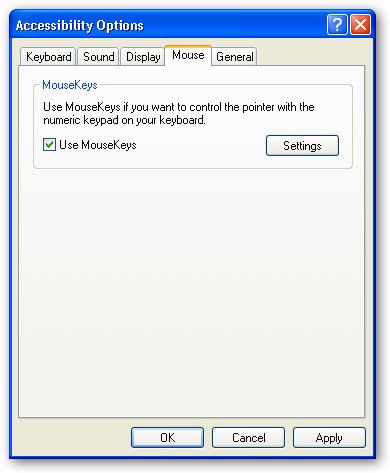
To launch MouseKeys :
- Goto Start Menu -> Settings -> Control Panel.
- From Control Panel, Start “Accessibility Options“.
- Goto Mouse Tab.
- Check the “Use Mouse Keys” as shown above.
After activating MouseKeys, make sure that the NumLock is on and use the numeric keypad to to control the mouse pointer, use the "5" key to perform left click.
Alternatively, if you are looking for greater control try MouseMan - A free utility to control the mouse pointer with configurable keys on the keyboard, in comparison with MouseKeys MouseMan offers better configuration and smoother mouse movements, the only drawback is that the application is in German Swedish but you can configure the application using the English tutorial here.
Comments
its not deutsch, its swedish
its not deutsch, its swedish 8P ..
superior
superior
художник-скульптор
Interesting blog , write more and , I'll go to you more often. Subscribed to your blog.
Web site design
Yes ... the design is clearly needed to be changed :)
The dark green color would fit perfectly xD
Add new comment