Windows Safe Mode comes pretty handy in fixing Windows Operating system errors caused due to poorly configured software drivers and virus's making the OS unbootable or unstable for diagnosis, similar to earlier versions of Microsoft Windows the upcoming Operating System Windows 7 features the familiar safe boot troubleshooting mode, today after installing some software's on my virtual Windows 7 installation it started to BSOD and reboot without giving me a chance to check the event manager to see what is causing the BSOD, the only option I was left was to boot into safe and see the Windows event log for troubleshooting the crash.
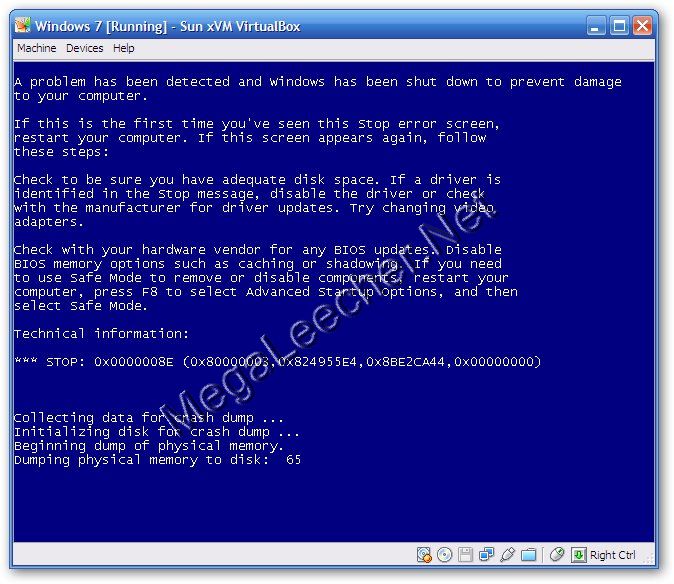
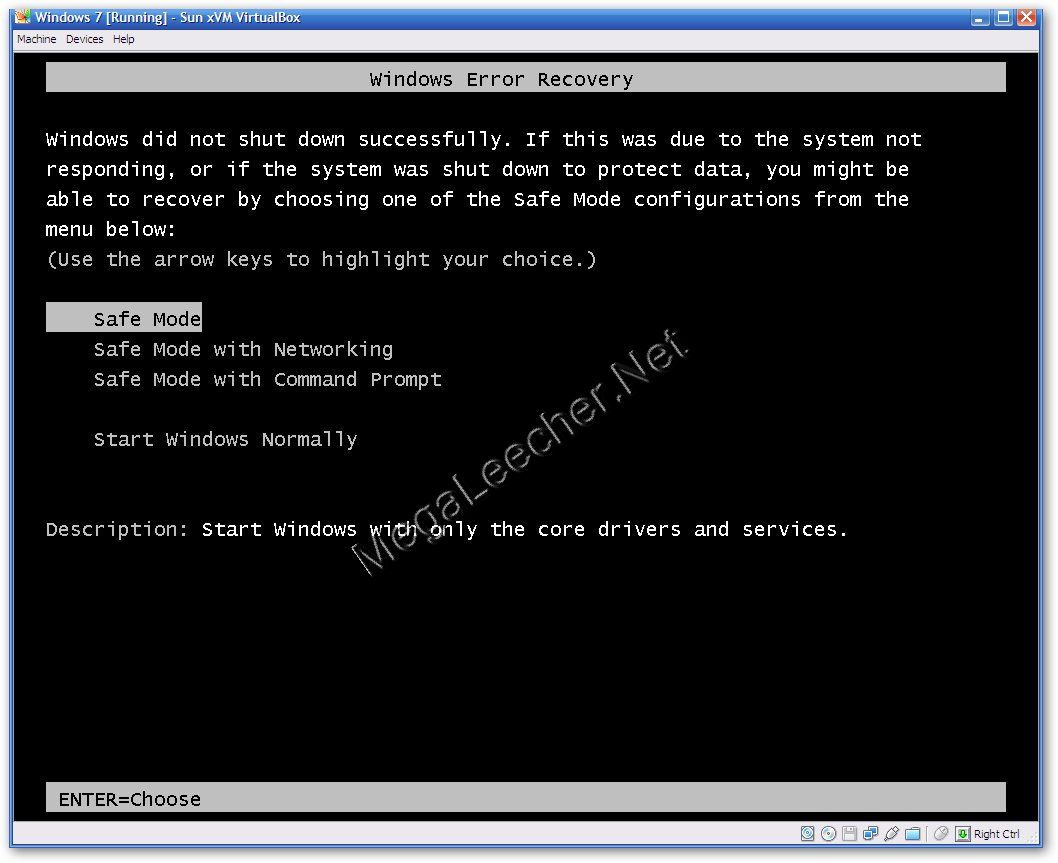
If a BSOD occurred during the last session Windows 7 will automatically provide the "Windows Error Recovery" screen having various Safe Boot mode options, simply select it to continue booting into safe mode.
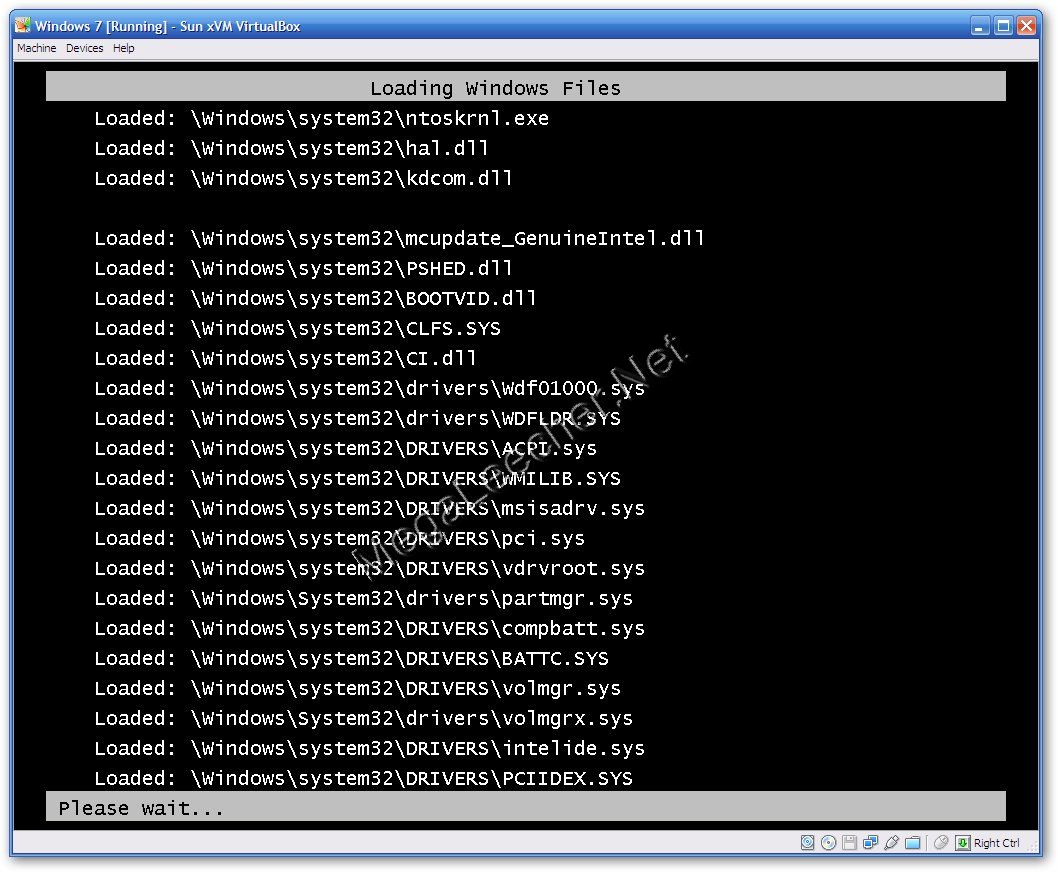
Windows 7 Safe Mode Booting Will Start Displaying Drivers Getting Loaded
Inside Windows 7 Safe Mode
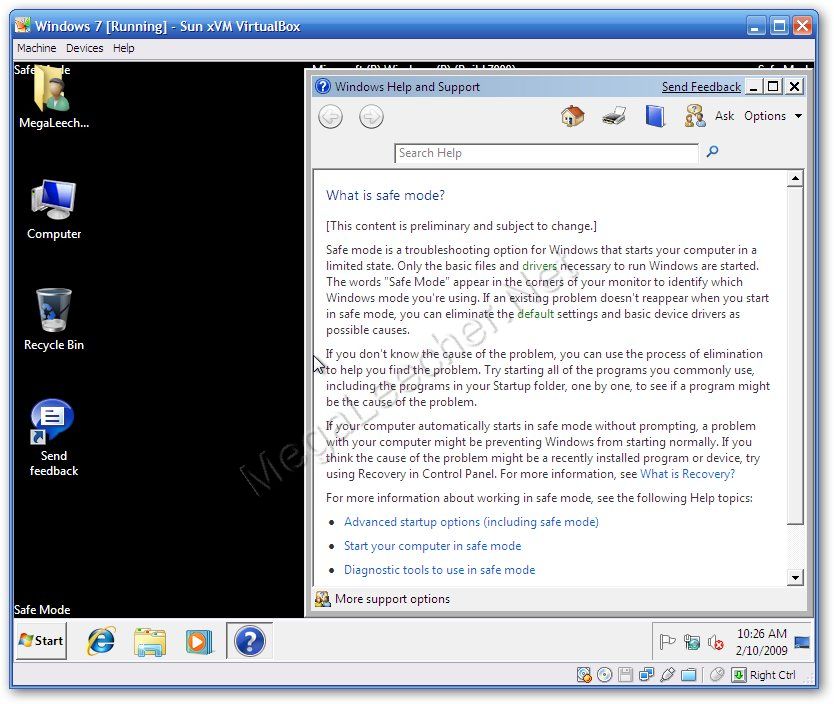
Once Inside Windows 7 Safe Mode, We Can Use Windows 7 Event Viewer From Control Panel -> Administrative Tools -> Event Viewer To Check The Error Log
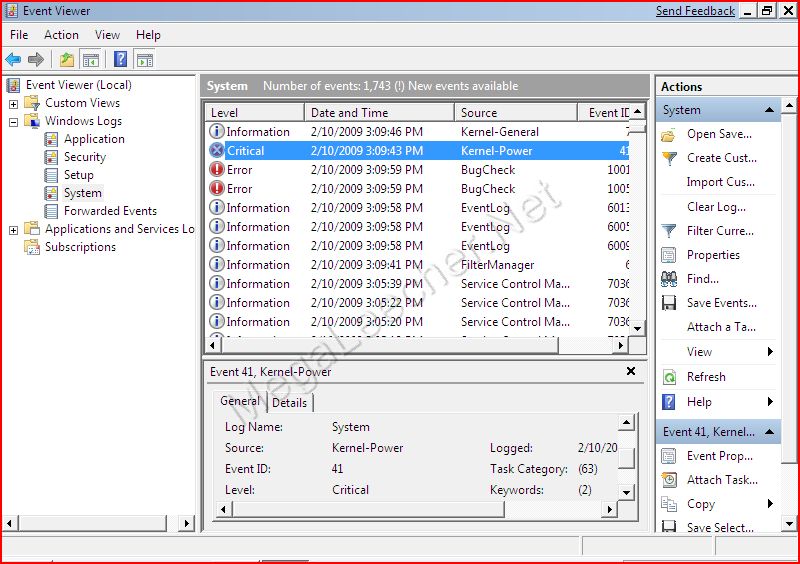

Windows 7 Safe Mode is very similar to earlier versions lacking advanced troubleshooting tools, more troubleshooting utilities and features may get added in the final version making Windows 7 error fixing easier for the end-users.
Comments
Ok
Windws 7 Ok Yes ?
please help
im getting that exact error! how did you fix it??
except when that screen
except when that screen comes up it restarts automatically, then tries to boot again with bringing me safe mode options
Safe mode
Well, since you are talking about putting windows 7 into safe mode, how do you actually do it?
Its' already there...
If a BSOD occurred during the last session Windows 7 will automatically provide the "Windows Error Recovery" screen having various Safe Boot mode options, simply select it to continue booting into safe mode.
windows 7 cant select specific or any safe mode
once I actually get safe mode screen with all the options to select and something is highlighted, i press enter and nothing happens or does it just take a long to start? windows 7 toshiba satellite l645d
Add new comment