What is TinyUmbrella ?
TinyUmbrella is an utility for Windows and MAC which allows users to save SHSH Blobs or Digital Signatures for Apple Devices (iPhone, iPad and Apple TV) locally, this allows restores to older firmware's which are no longer officially supported by Apple. TinyUmbrella works the magic by running locally as a proxy to iTunes, intercepting and faking the communication while iTunes thinks it is communicating with Apple servers for authenticating the firmware restore as permitted irrespective of what Apple Servers allow and disallow. This feature becomes indispensable for users relying on "Software unlocks" which are supported on older firmwares and basebands, as Apple restricts restores to these exploited versions forcing users to newer versions of iOS.
What is SHSH Blobs ?
These are backup files of firmware digital signatures which are needed to restore an Apple device, Apple generates these based on hardware keys of the device and the hash of the firmware - which makes them unique for every device. It is to be noted that Apple only issues signatures for the currently-available, current iOS version. What TinyUmbrella does is to save these digital signatures locally for later use, when Apple does not allow them.
How to save SHSH Blobs using TinyUmbrella ?
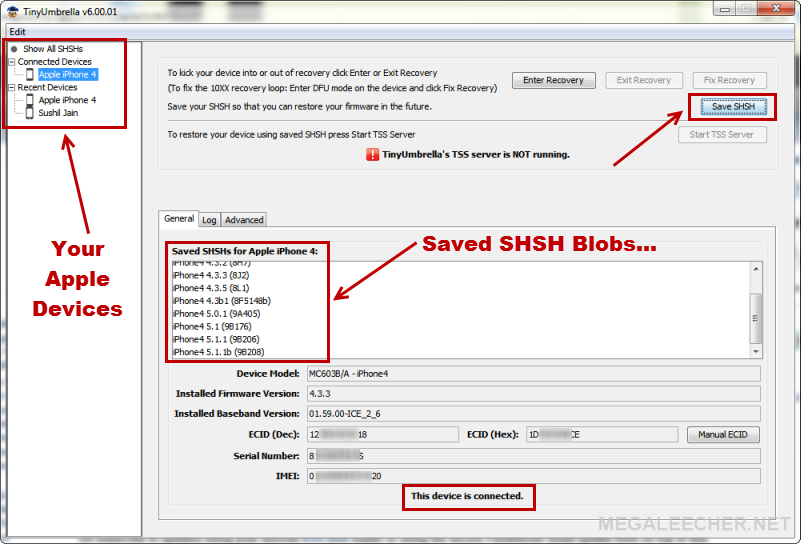
Simply download the TinyUmbrella utility (links provided at the end of this blog post), and connect your device. Once detected click the "Save SHSH button" and it's done, if having errors look at our TinyUnmbrella troubleshooting guide.

 UPDATE :
 If you upgraded to the latest