iTunes can sometimes get on your nerves displaying confusing error messages without providing proper explanation even when help button is clicked, something similar occurred when my iPod firmware got corrupted and I used the Restore function in iTunes but to my surprise iTunes displayed error - "The iPod BNB could not be restored because the firmware file could not be found." , I allowed iTunes to check internet for firmware download but the error persisted.
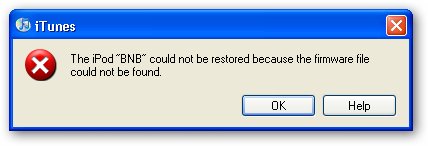
This issue is caused when you have firmware files already downloaded in iTunes cache location but it gets corrupted, instead of allowing you to download a fresh copy of the firmware our not so smart iTunes keeps showing this error, to fix the error simply follow the solution next.
Fix for "firmware file could not be found" error in iTunes :
- Open Windows Explorer and type %APPDATA% and press enter in address-bar, this should open current users Application Data folder.
- Now navigate to Apple Computer -> iTunes folder.
- This folder should contain a folder named - iPod Software Updates simply delete it or rename it.
- Launch iTunes and click restore button, it will now ask you to download the firmware file and everything should work fine now.
Comments
Thank You
I love you.
what about for MAC
how do i fix this for mac
similar problem
the Msg i recevied is "the firmware file is not compatible"
plz can you sovle it
Thanxxxx
Still not working, Ipod
Still not working, Ipod Firmware file could not be restored because the firmware file is not compatible.........................
It still tells me the same
It still tells me the same message
SAME HERE!
Same here its says "The ipod could not be restored becuse the firmware is not compatible" PLEASE HELP!!
Yay me too
ME there is no ipod software update there is only a apple software update... Help
iphone 3g version 3.1.3
Same here it's says "The iphone could not be restored because the firmware is not compatible"
Thank you
"IPod Software" wasn't in the
"IPod Software" wasn't in the folder
!REPLY I'VE BEEN TRYING FOR 24 HOURS NON STOP!
Still says that message trying to jailbreak it
(Ipod touch 3rd generation 3.1.3)
Same HEre The message Still Comes Up
The message still comes up
PLease Help
<3
Omg I love you Thank you<3333 Thank you Thank You Thank you!!!
:):):)
OMG yes it work
i love you !!!!!
The Ipod could not be updated because the firmware file is not c
Hi.
I´m trying to run a software to jailbrak my IPod Touch 4.2.1 but I get the same comment
as others. I have tried to change the name of the folder but it does not work. Can you help????
not compatible
its still says not compatible
Not compatible
PLSSSSSSSSSSSSSSSSSSSSSSS HELP IT SAYS file not compatible
same here
it says file is not compatible...
ipod touch 4g
I´m trying to run a software to jailbrak my IPod Touch 4.2.1 but I get the same comment
as others.
Same here it's says "The iphone could not be restored because the firmware is not compatible"
Please Help
THANKS
Helped my iPod touch 2g downgrade to 4.2.1, ready to jailbreak now.
i put the apple restore file in the iPod Software Updates folder though for it to work, weird.
Thanks for writing this
Thanks for writing this useful tutorial :)
Add new comment