Task Manager
AntiFreeze - Handy Task Manager Which Works When Your Computer Gets Frozen
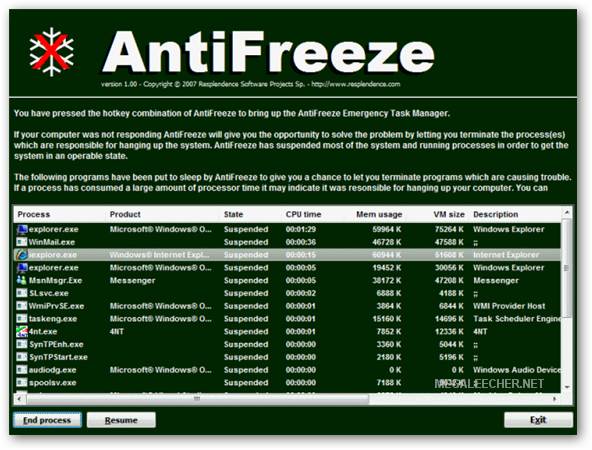
Submitted by admin on Fri, 07/30/2010 - 13:45It gets really frustrating when your computer decides to froze while doing an important task, nothing works and you are not even able to launch Windows Task Manager to kill processes hogging system resources. Windows freeware AntiFreeze takes care of this by offering a last resource to get you rescued from a hung system, all you need to do is to press the AntiFreeze hotkey and it will put to sleep all running programs except the most critical ones, giving you the opportunity to close down the programs which are causing problems via a special task-manager.
- 6 comments
- Read more
- 4753 reads
ATool - Advanced System Diagnostic And Information Utility
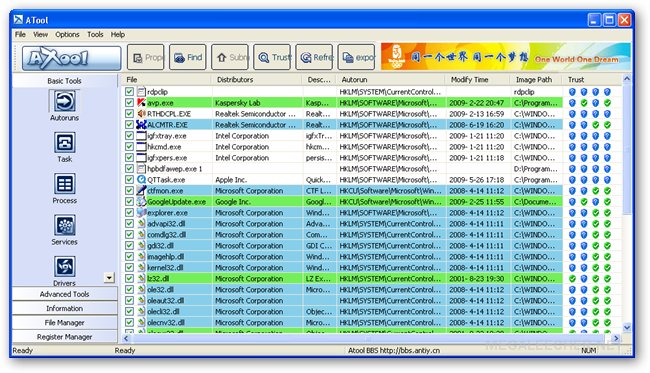
Submitted by admin on Mon, 07/06/2009 - 12:02Advanced system information tools are very useful for detecting unknown viruses and removing them, there are plenty of free and paid utilities providing all the system diagnostic information at one place but free advanced security management tool ATool would be one of the most comprehensive of all.
ATool requires no installation and shows Windows Autorun, running processes, loaded DLLs and drivers, open-ports, BHOs, System users, hosts information and comes with an file and register manager.
- 7 comments
- Read more
- 5719 reads
How To Know Your System's Maximum RAM Usage And The Issue Of Windows XP Not Recognizing Full RAM Capacity
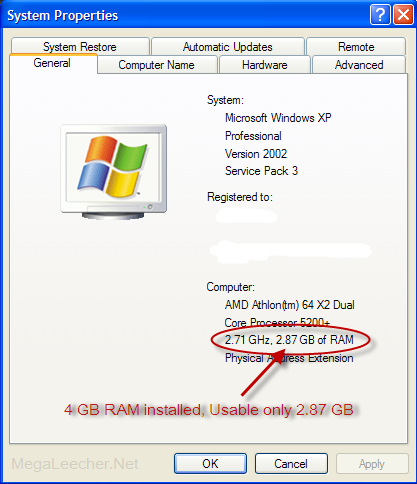
Submitted by admin on Thu, 11/27/2008 - 15:17Few days ago I upgraded RAM on one of my computers to 4 GB, but to my surprise my Windows XP SP3 machine refused to recognize the full RAM and displayed only 2.87 GB as usable, further investigation on the problem revealed that although 32-Bit operating systems like Windows XP and Vista can address and support a maximum of 4 GB RAM but the operating system needs to reserve memory addressing space for hardware devices, so out of the total 4 GB addressing space the operating system is left with 4 GB minus the addressing space required for the current hardware configuration.
However, according to this Microsoft Article Windows XP and Windows Vista can both address more RAM using the Physical Address Extension (PAE).
- 7 comments
- Read more
- 25657 reads
ProcessQuickLink - The Easiest Way To Get Process Information Directly From Windows Task Manager
Submitted by admin on Tue, 08/05/2008 - 08:04- Exe Process Library
- Identify Processes In Vista
- Identify Running Processes And Files
- Keylogger Spyware
- Memory Processes
- Process Asset Library
- Process Library
- Processlibrary
- ProcessQuickLink
- Spyware Process Information
- System Process
- Task Manager
- Task Manager Processes
- Uniblue Process Library
- Where Are My Running Process
- Windows Process Library
- Wintasks Process Library
- XP Processes
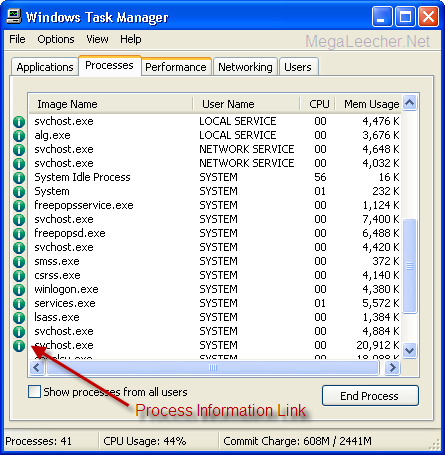
Keeping an eye on what's running on your computer is essential for your data security and optimal system performance, Identifying and removing unwanted processes is quite easy if you are an advanced computer user, users simply need to launch Windows Task Manager or a similar advanced task manager and kill the unwanted process, but if you are having a tough time recognizing processes, ProcessLibrary.com can come in very handy, Now with UniBlue's ProcessQuickLink you can get the latest definitions and advice on all the processes running directly from the Windows Task Manager.
- 2 comments
- Read more
- 5395 reads
Use Process Lasso And Say GoodBye To CPU Hoggers & System Lockup
Submitted by admin on Sun, 01/20/2008 - 15:16Process Lasso is an advanced task manager with ability to keep tab on resource hoggers resulting in system lockups and crashes, this small utility sits in your system tray and kicks in when certain user defined conditions are met like an application eating up more than 60% of your CPU cycles, Process Lasso will then avoid system lockup or crash by dynamically lowering process priority of the particular process.

Author Description:
Process Lasso is a unique new technology intended to automatically adjust the allocation of CPU cycles so that system responsiveness is improved in high-load situations. It does this by dynamically temporarily lowering the priorities of processes that are consuming too many CPU cycles, there-by giving other processes a chance to run if they are in need. This is useful for both single and multi-core processors. No longer will a single process be able to bring your system to a virtual stall.
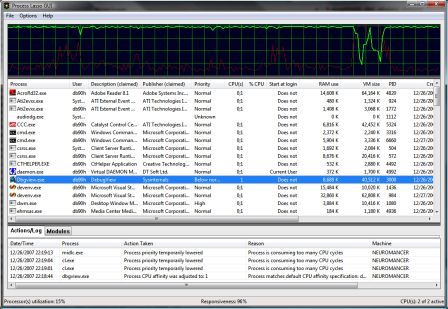
In addition, Process Lasso offers capabilities such as default process priorities, default process CPU affinities, termination of disallowed processes, and logging of processes executed. With Process Lasso you essentially create rules to manage processes running on your system. For example:
1. Examples Make notepad.exe run at below normal priority each time its launched.
2. Make firefox.exe run only on CPU #1 each time its launched.
3. When any process is consuming 35% or greater of the CPU for 1.5 seconds or more and the total system CPU usage is 95% or greater, lower that process's priority until it returns to 5% CPU utilization.
- Read more
- 8093 reads
Windows XP Task Manager Tips
Submitted by admin on Mon, 07/30/2007 - 09:14Windows XP Task Manager (CTRL+SHIFT+ESC) has a not so widely known "no titlebar" view mode just double-click on the empty area on the right side of the tabs. Once it has switched views, you can switch back quickly by double-clicking anywhere on the border.

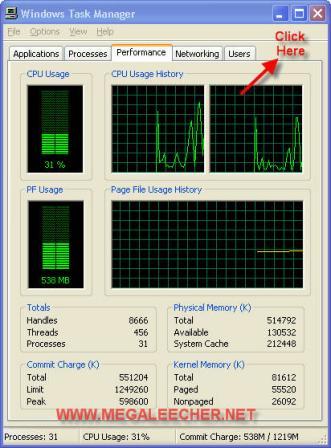
Switch to the Performance tab before activating this border-less mode and you will have a nice and simple CPU monitoring desktop widget without using any third-party application.
Also, most of the task manager users are unaware of the minimize to system tray option, just check the "Minimize On use" option from the options menu and whenever you minimize the Task Manager it will neatly sit into the system tray area and show you current CPU Usage.
- 3 comments
- 15242 reads